User guide

From Play Store to your first alert

A walkthrough of every screen that matters — install, permissions, your first price target, and the settings that keep alerts ringing.

Download for Android
4 chapters
13 steps
About 4 minutes

Chapter 01

Get the app

Find SkaleTrade on Google Play and install it on your Android phone.

Step 1

Search for SkaleTrade

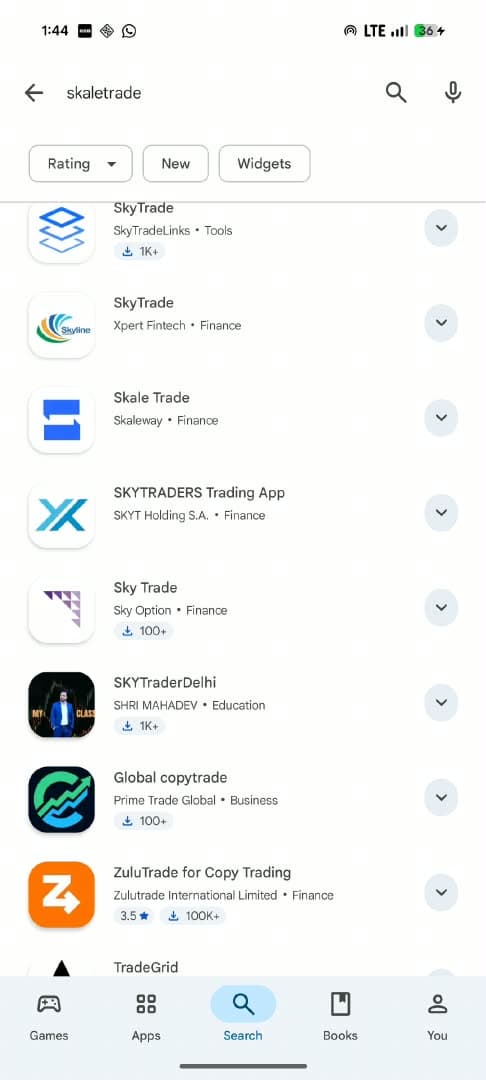
Open the Google Play Store on your Android phone. Tap the search field and type skaletrade — one word, all lowercase. You do not need a publisher name yet. The correct listing is easier to recognise on the next screen.
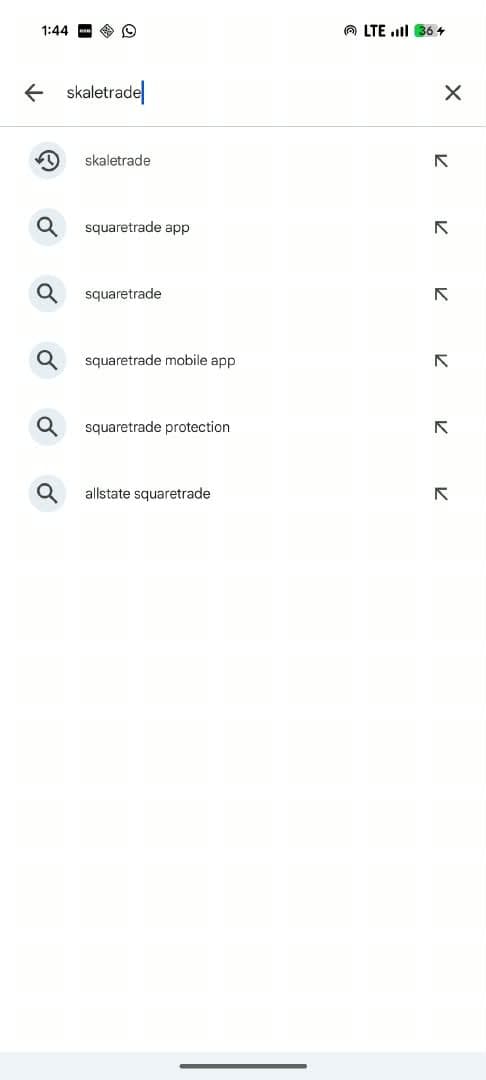
Google Play Store search field with the query skaletrade
  1. 1

    Type skaletrade

    One word, all lowercase. Then tap the query in the list, or the search icon.

  2. 2

    Select the query

    If it already sits in your search history, tap that row to run it immediately.
Step 2

Choose Skale Trade by Skaleway

Several similarly named apps appear. Scroll to Skale Trade, published by Skaleway, in the Finance category. The mark is two offset blue bars. Ignore lookalikes with a similar name.

Confirm the publisher reads Skaleway before you tap through. That is the official listing.

Play Store search results highlighting Skale Trade by Skaleway
  1. 1

    Tap Skale Trade

    Skaleway · Finance. Two offset blue bars on a light square.

Step 3

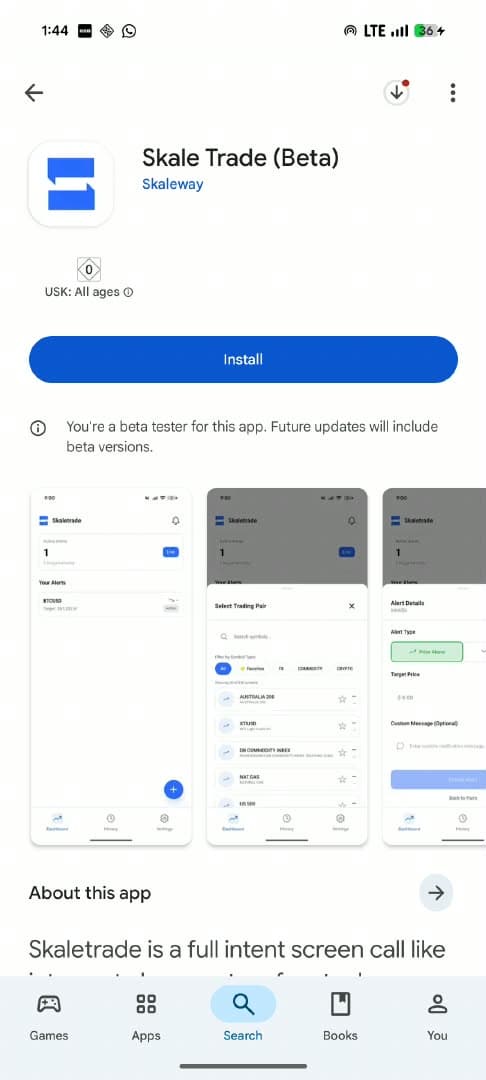
Install the app

Confirm the name, the Skaleway publisher, and the blue mark, then tap Install. When Play Store finishes, open SkaleTrade from this listing or from your home screen.

Skale Trade Play Store listing with the Install button
  1. 1

    Confirm the publisher

    The listing should read Skale Trade (Beta) by Skaleway.

  2. 2

    Tap Install

    Android handles the download. Open the app when it completes.

Chapter 02

Turn alerts on

Grant the two permissions that let a price hit interrupt you, even in another app.

Step 4

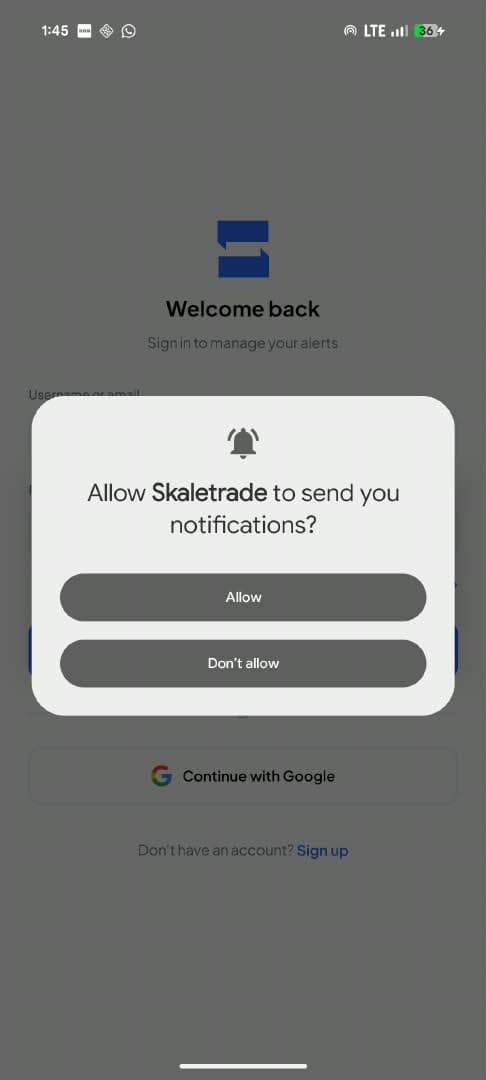
Allow notifications

The first prompt is from Android, not the app. Tap Allow. This is what lets an alert reach you at all — without it, a price hit stays silent on the lock screen.

If you tap Don’t allow by mistake, you can restore notifications later in Settings → Push Notifications.

Android dialog asking to allow Skaletrade to send notifications
  1. 1

    Tap Allow

    This is the permission that delivers every price alert to this phone.

Step 5

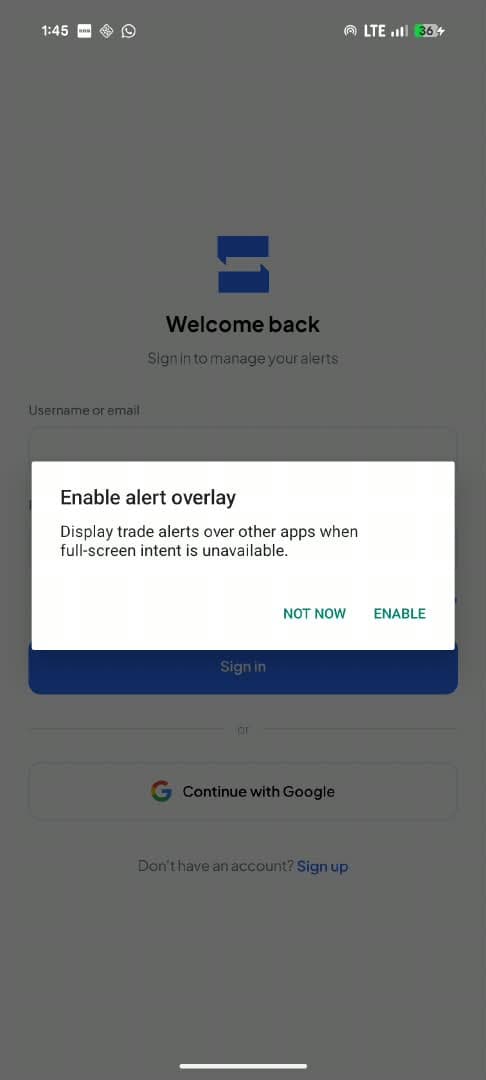
Enable the alert overlay

SkaleTrade then asks to display alerts over other apps when a full-screen interrupt is unavailable. Tap Enable. Android will open the system settings screen next — that is expected.

In-app dialog titled Enable alert overlay, with Enable and Not now actions
  1. 1

    Tap Enable

    Opens Android settings so you can allow display over other apps.

Step 6

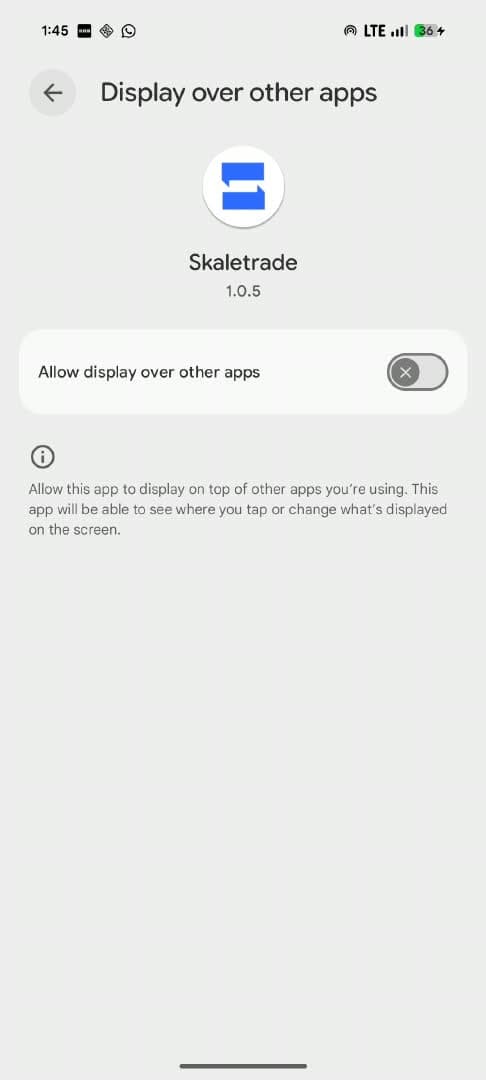
Turn on display over other apps

The switch starts off. Tap it so Allow display over other apps turns on, then use the back arrow to return to SkaleTrade. This is the step most people skip, and the one that decides whether an alert can break through while you are in another app.

Leave this off and alerts fall back to a standard notification — easy to miss with the phone in a pocket or face-down.

Android settings for Display over other apps, with the Skaletrade toggle off
  1. 1

    Flip the switch on

    It starts off. Turn it on, then tap the back arrow to return to the app.

Chapter 03

Set your first alert

Sign in, pick a pair, and set a target so the phone can ring when the market arrives.

Step 7

Sign in to your account

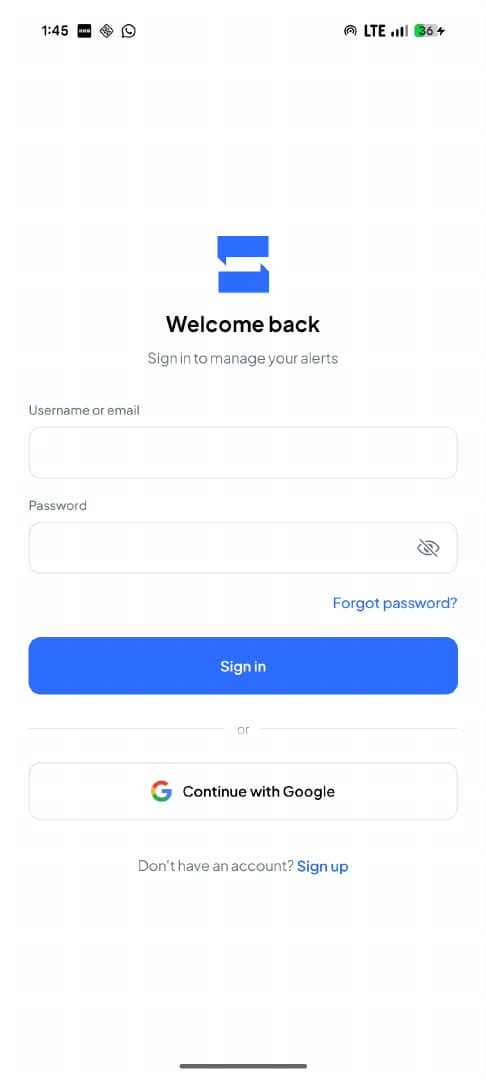
Use the email and password you created on the web, or continue with Google. If you do not have an account yet, tap Sign up at the bottom. The same account powers the phone app and the web dashboard.

SkaleTrade sign-in screen with email, password, and Continue with Google
  1. 1

    Enter your account

    Username or email, then password. Same credentials as the web app.

  2. 2

    Or continue with Google

    Use the Google account tied to your SkaleTrade profile.

  3. 3

    New here? Sign up

    Create an account in the app, or on the web at skaletrade.com/signup.

Step 8

Start from an empty home

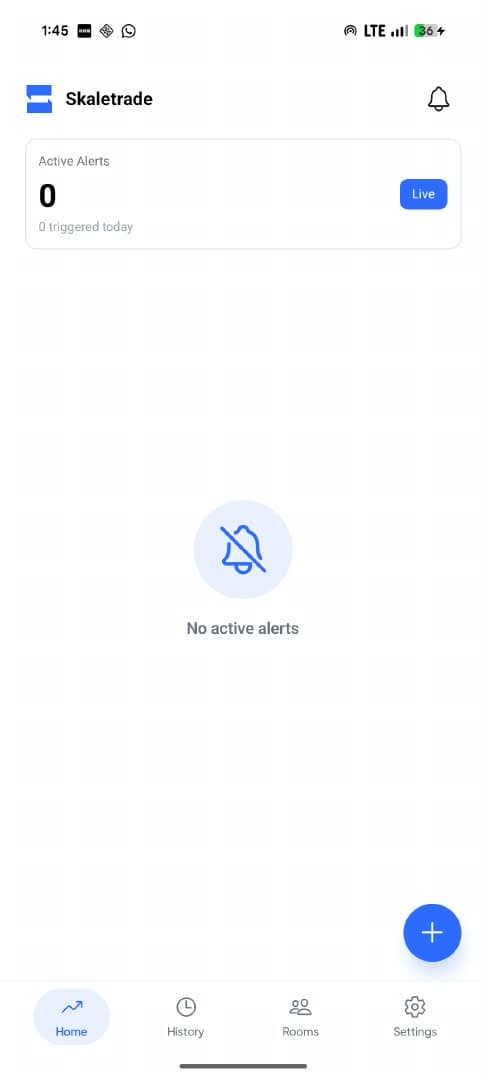
Home shows Active Alerts at zero until you create one. The Live badge means the price feed is connected. Tap the blue plus in the corner to set your first alert — that is the only action you need on this screen.

SkaleTrade home screen with zero active alerts and a plus button
  1. 1

    Active alerts

    Stays at zero until you create a target. Triggered today counts hits since midnight.

  2. 2

    Tap plus

    Opens the pair picker so you can create your first price alert.

Step 9

Pick a trading pair

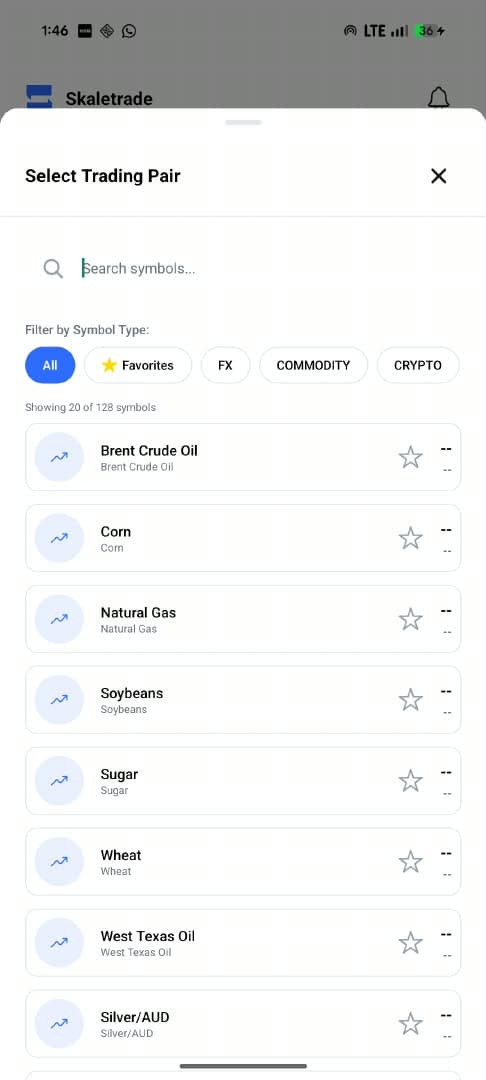
Search by name, or filter by FX, Commodity, or Crypto. Tap a row to continue. Star a pair you watch often so it appears under Favorites the next time you open this sheet.

Select Trading Pair sheet with search, category filters, and a list of symbols
  1. 1

    Search symbols

    Type Gold, EURUSD, or BTCUSD to jump straight to a pair.

  2. 2

    Filter the list

    All, Favorites, FX, Commodity, or Crypto. 128 symbols in the full catalog.

Step 10

Set the price and direction

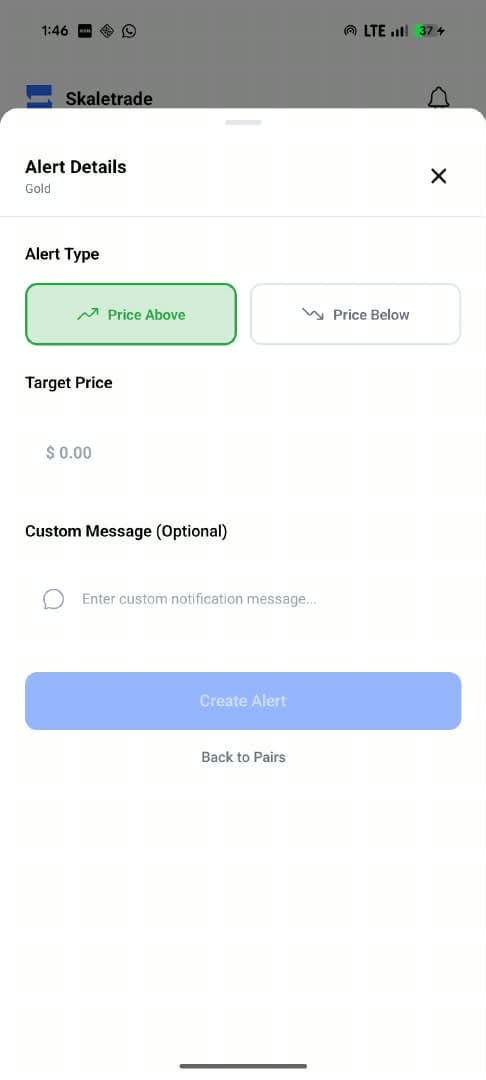
Choose Price Above or Price Below, then enter the exact target. An optional custom message appears on the interrupt when it fires. Tap Create Alert when the number looks right.

Use the pair’s native precision. Gold, for example, accepts fractional dollars — match the market, not a round number you will never print.

Alert Details sheet for Gold with Price Above selected and a target price field
  1. 1

    Choose direction

    Price Above rings when the market trades through your target from below. Price Below is the inverse.

  2. 2

    Enter the target

    This is the price that fires the interrupt. Leave custom message blank if the pair name is enough.

  3. 3

    Create Alert

    Saves the alert as Active and returns you to Home.

Chapter 04

Manage and go further

Update or pause alerts, read history, and finish setup in Settings.

Step 11

Review and control an alert

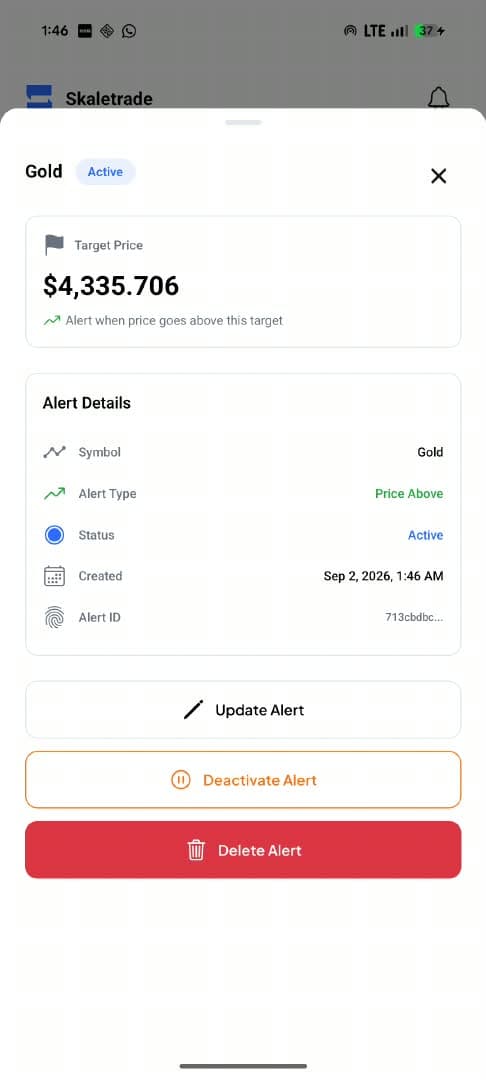
Open any active alert to confirm the target, direction, and status. Update the price if the market has moved. Deactivate pauses notifications without deleting the alert. Delete removes it for good.

Active Gold alert with target price, details, and Update, Deactivate, and Delete actions
  1. 1

    Confirm the target

    The condition sits under the price — above or below — so you can audit it at a glance.

  2. 2

    Update, pause, or delete

    Deactivate is the safe pause. Delete is permanent.

Step 12

Read what already fired

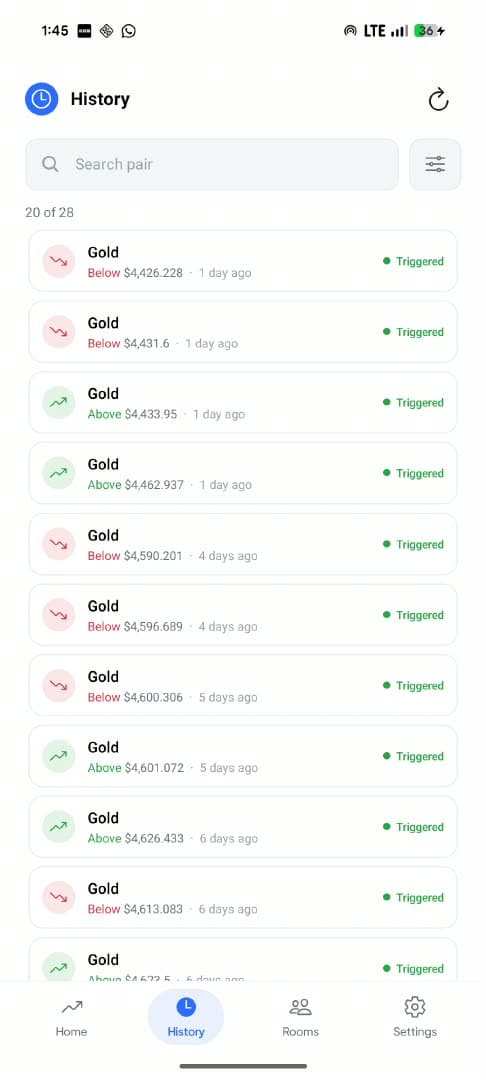
History is the log of every trigger. A green arrow means the price went above your target. A red arrow means it went below. Search by pair when the list gets long, and pull to refresh if a recent hit is missing.

History screen listing triggered Gold alerts with above and below conditions
  1. 1

    Search a pair

    Filter the log when you are tracking more than a handful of symbols.

  2. 2

    A fired alert

    Direction, target, and relative time. Triggered means the interrupt was delivered.

Step 13

Finish setup in Settings

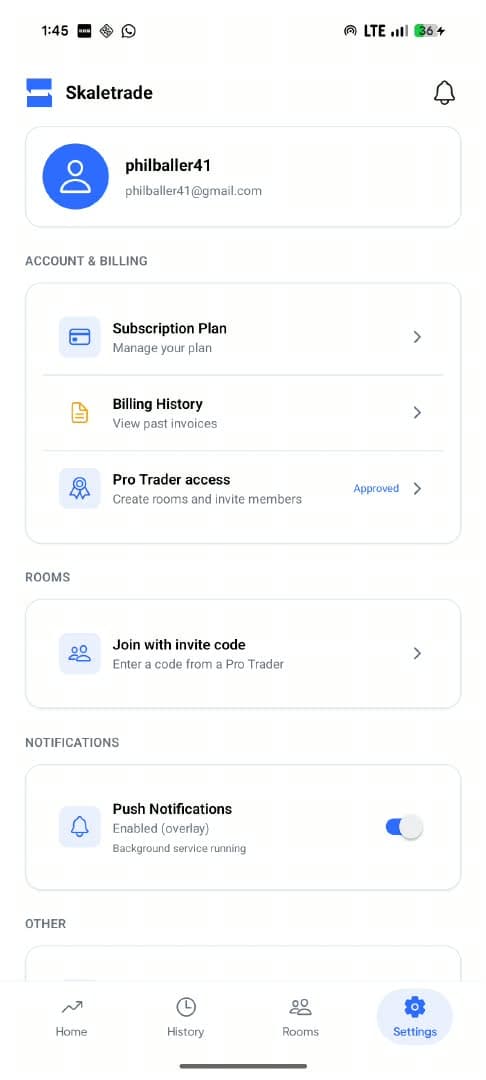
Check that Push Notifications reads Enabled (overlay) and that the background service is running. From here you can manage your plan, join a room with an invite code, or review Pro Trader access if you create rooms of your own.

If alerts go quiet after a few hours, return here first. The overlay toggle is the fastest health check.

Settings screen showing profile, subscription, rooms, and push notifications enabled
  1. 1

    Account and billing

    Manage your plan, invoices, and Pro Trader access from this group.

  2. 2

    Join a room

    Paste an invite code from a Pro Trader to receive their execution alerts.

  3. 3

    Keep overlay on

    Enabled (overlay) plus a running background service is the healthy state.

If something is quiet

Troubleshooting

Most missed alerts come down to one permission or a battery setting. Start here before you reinstall.

You are set

Create an account, then open the app

The same login works on the web dashboard and on Android. Set a target once, and the phone will ring when the market arrives.

Already have an account? Install the Android app and pick up at sign-in.

Download for Android